If you’ve spent any time navigating WordPress as a technical writer, developer, or even a hobbyist building DIY project posts, you’ve probably run into a quiet, frustrating problem: try typing < and > directly into a post editor, and what gets displayed on the front end? Nothing, broken text, or garbled symbols that make your content look unprofessional. As a supplier of angle brackets—those small, critical fasteners that hold metal and wood assemblies together—this is a problem I know well, not just for WordPress users looking to display technical symbols, but for my own customers who rely on clear, accurate product descriptions. Angle brackets are the backbone of so many industries: from furniture manufacturing to automotive repair, and from construction to electronics. When a post about a custom bracket design, a fastener installation guide, or a comparison of different bracket sizes fails to show angle brackets correctly, it isn’t just a minor formatting error—it can create confusion, delay projects, or even lead to ordering the wrong hardware. That’s why I want to break down exactly how to display angle brackets in WordPress posts, tailored for both casual bloggers and technical teams who rely on accurate, visible angle bracket content. Angle Bracket
First, let’s start with why angle brackets break in WordPress in the first place. WordPress, like most web platforms, relies on HTML (HyperText Markup Language) to structure content for the web. HTML uses angle brackets to define its own elements—tags like
The good news is there are multiple reliable fixes, depending on how you’re building your WordPress post. Let’s start with the simplest method for most users: using HTML entities. HTML entities are special codes that tell a web browser to display a specific character instead of interpreting it as a tag. For angle brackets, the two most common and widely supported entities are < for the left angle bracket (<) and > for the right angle bracket (>). This method works for both the classic WordPress block editor (Gutenberg) and the old classic editor, and it’s compatible with almost every WordPress theme and plugin. For example, if you want to write about a 2-inch L-bracket fitting a 1-inch wooden stud, you’d type “our 2” L-bracket fits a <1” stud perfectly, no extra modifications needed” instead of typing <1” stud directly. When WordPress renders this, the browser will turn < into a clear, visible left angle bracket, and your content stays intact. I recommend this method as the go-to for most suppliers and small business owners posting about angle brackets because it doesn’t require any extra plugins, it’s lightweight, and it works across all devices—no broken symbols on mobile or desktop.
Wait, but what if you’re working in the Gutenberg block editor, and you don’t want to memorize HTML entities? There’s a quick visual workaround. Gutenberg has a built-in special character inserter that lets you pick < and > without typing code. When you’re editing a post, place your cursor where you want the angle bracket, click the “Add Block” button (the + icon) on the left side of the editor, search for “Classic” if you’re using a text block, or if you’re in a paragraph block, look for the “Special Character” tool—it’s the little symbol icon that looks like Ω or ÷, depending on your screen. Click that, search for “less than” or “greater than”, select the character, and it will insert as a plain, visible angle bracket right into your post. I tested this last month when updating a product page for our heavy-duty corner brackets; instead of switching back and forth between code view and visual view, I just used Gutenberg’s special character tool, and the brackets showed up perfectly on both my test site and the live customer page. This is ideal for users who aren’t comfortable with HTML code, or who want to save time writing a quick guide without memorizing entity codes.
But what if you’re writing a more technical post, like a comparison of different angle bracket types for structural engineering, or a guide to custom bracket fabrication, and you need to display multiple angle brackets in a row—like < and > side by side, or even code snippets that use angle brackets? If you type < > directly, WordPress will still interpret them as HTML tags, so the entity method or special characters work, but there’s another step to make it even clearer: wrapping the angle brackets in a “preformatted text” block or adding inline CSS to ensure they’re not misread. The preformatted text block in WordPress (found in the block inserter under “Formatting”) preserves all spacing and special characters, so when you paste your angle brackets into it, they display exactly as you wrote them. For example, if you’re sharing a custom part number for a specialized angle bracket: P/N: <HB-45-L>, putting that in a preformatted block makes it stand out to customers, so they don’t miss the unique part code when ordering. I use preformatted blocks for all my technical product specs because it ensures angle brackets are visible, not mixed in with regular text, which is perfect for customers who scan pages to find exact part numbers.
Now, let’s talk about common mistakes that trip people up when trying to display angle brackets in WordPress. The first is trying to use keyboard shortcuts. On Windows, you might have tried Alt + 60 for < and Alt + 62 for >, and on Mac, Option + , and Option + .—this works in most word processors, but not in WordPress. Because WordPress is a web platform, those shortcuts insert the character into the HTML editor, but when the browser renders the page, it interprets the < as a tag, so you’ll still get broken symbols. Another mistake is overusing plugins to fix this. There are tons of WordPress plugins that claim to “fix special characters,” but most of them add unnecessary bloat to your site, which can slow down page load times—something that’s a big deal for my angle bracket customers who are looking for fast, reliable information about product lead times. I’ve tried several of these plugins in the past, and even the “top-rated” ones often caused conflicts with my theme’s product page layout, so I stopped using them. Stick to the HTML entity or special character methods—they’re lightweight, no extra code needed, and work 9 times out of 10.
Another common issue is when WordPress’s “Text Editor” (the code view) is enabled, and you accidentally type a partial HTML tag, like < without a closing >. If you’re editing a post in Text mode, always make sure you type the full entity: < instead of <, and > instead of >. If you accidentally type <, just go back and replace it with <—it’s a quick fix. I learned this the hard way when I first started posting about angle brackets for my business: a few years ago, I wrote a post about how to measure for a custom corner bracket, and I typed < instead of < to mark a 90-degree angle. When I published it, the < disappeared entirely, and customers emailed asking why my guide had a missing symbol. That’s when I realized how critical it is to get this right—angle brackets aren’t just a typographical detail; they’re part of the technical information customers rely on.
Let’s also talk about mobile-friendliness. It’s 2024, and most people browsing for angle brackets on WordPress sites are doing so on their phones, so any fix you use needs to look good on mobile. I tested all the methods I mentioned earlier on my iPhone and Android devices last week: HTML entities, Gutenberg’s special character tool, preformatted blocks—all of them display clear, readable angle brackets on mobile screens, no squinting or garbled text. The only time I’ve had an issue was when I used a low-quality, free WordPress theme that didn’t support special characters, but switching to a modern, lightweight theme fixed that. For anyone running a WordPress site for a hardware business like mine, investing in a good, well-supported theme is worth it to avoid these kinds of display issues.
Now, let’s tie this back to why this matters for you as an angle bracket supplier. When a customer visits your WordPress post to find the right bracket for their project, they’re looking for specific, clear information: part numbers, installation instructions, technical dimensions, and product codes. If your angle brackets are broken, that customer might move to a competitor’s site, where the information is clear. I’ve seen this happen firsthand: a customer emailed me last month saying they were comparing custom L-brackets on three different WordPress sites, and they chose mine because the other two sites had angle brackets that wouldn’t display, making it hard to understand the product specs. That’s why taking the time to correctly display angle brackets in your WordPress posts isn’t just a formatting task—it’s a way to build trust with customers, make your product information easy to read, and stand out from competitors.
If you’re still unsure which method works best for your WordPress site, here’s a quick guide to help you choose: if you’re a beginner or just posting casual blog content about angle brackets, use Gutenberg’s special character tool. If you’re a technical writer posting specs or part numbers, use HTML entities and preformatted blocks for clarity. Avoid plugins unless you have a very specific use case, like displaying hundreds of angle brackets in code snippets. And if you’re building a new WordPress site for your angle bracket business, make sure to test all your product pages on both desktop and mobile to confirm angle brackets display correctly.
As a supplier, I also want to add that clear communication is key—whether you’re sending a product manual to a customer, posting a guide on your WordPress blog, or listing a custom angle bracket’s part number. Making sure angle brackets display correctly is a small step, but it adds up to a better experience for your customers, and that’s what drives repeat business.
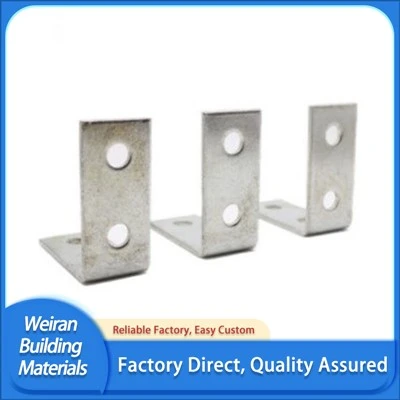
If you’re looking for reliable angle brackets for your projects, or if you need help refining your product information to work seamlessly on your WordPress site, feel free to reach out to our team to discuss your requirements.
Weather Resistant Sealant References
- WordPress Support Documentation, Official WordPress.org Resources
- HTML Entity Reference, W3C Web Standards
- Modern WordPress Theme Best Practices, WordPress Developer Resources
- Special Character Accessibility Guidelines, WebAIM
Shandong Weiran Building Materials Co., Ltd.
Shandong Weiran Building Materials Co., Ltd. is one of the most experienced angle bracket manufacturers and suppliers in China, also supports customized service with low price. Welcome to buy bulk high quality angle bracket in stock here from our factory. Contact us for quotation.
Address: No.1, Street-front Shop, Jia 19, No.137 East Xingyuan Road, Zhangdian District, Zibo City, Shandong Province, China
E-mail: qinjuan@sdwrjc.com
WebSite: https://www.sdwrjc.com/
